Have you ever watched a team member spend twenty minutes hunting for a document, only to give up and ask a colleague to email it to them instead? It’s a quiet drain on productivity that happens every day when digital filing systems spiral out of control. When you try to organize company files in SharePoint without a clear strategy, the platform often becomes a source of friction rather than a tool for collaboration. You likely recognize the symptoms: accidental deletions, version confusion, and a general sense of frustration that drives people back to cluttered email threads.
We understand that a messy digital environment is more than an inconvenience; it’s a barrier to your team’s success. With the retirement of older SharePoint versions in July 2026, many organizations are realizing that legacy structures don’t translate to a modern cloud environment. This guide provides a methodical, stress-free approach to structuring your SharePoint environment for maximum productivity. We’ll move past the “chaos of folders” and explore how a deliberate architecture can transform your daily workflows, ensuring your data remains protected while staying effortlessly accessible to those who need it most.
Key Takeaways
- Identify why traditional folder structures create digital clutter and how to transition toward a more fluid, cloud-first mindset.
- Compare the benefits of metadata tagging against traditional folders to enable faster, multi-dimensional file searching.
- Follow a clear, five-step roadmap to audit your existing data and organize company files in SharePoint based on your unique department structure.
- Implement security best practices by managing permissions through groups rather than individuals to ensure data remains safe and accessible.
- Learn how a consultative approach to Microsoft 365 configuration can replace daily chaos with a steady, reliable operational flow.
Understanding the SharePoint Junk Drawer Phenomenon
Many organizations approach their digital space like a kitchen junk drawer. You know the one; it’s where the spare batteries, rubber bands, and mysterious keys live. While this might be fine for a single drawer in your home, it’s a recipe for frustration in a business setting. When you attempt to organize company files in SharePoint using the same mental models used for paper filing cabinets or old local servers, you often end up with a digital labyrinth that slows everyone down.
Traditional folder-based thinking fails because it’s rigid and linear. In a modern cloud environment, information needs to be dynamic. The SharePoint collaborative platform is designed to be much more than a simple hard drive in the sky. It’s a sophisticated framework for information architecture. If you treat it as mere file storage, you’ll soon face the hidden costs of digital clutter: lost billable hours, decreased morale, and decision fatigue. When a team member has to decide between five different folders to save a single document, they’re using mental energy that should be spent on their actual work.
At Strategic Help, we believe that calm workflows start with organized data. Our philosophy is rooted in the idea that technology should amplify human connection, not hinder it. Moving from “storage” to “architecture” means designing a system that anticipates how your team actually works. It’s about creating a foundation that feels stable and reliable, even as your company grows.
The Symptoms of a Poorly Organized SharePoint
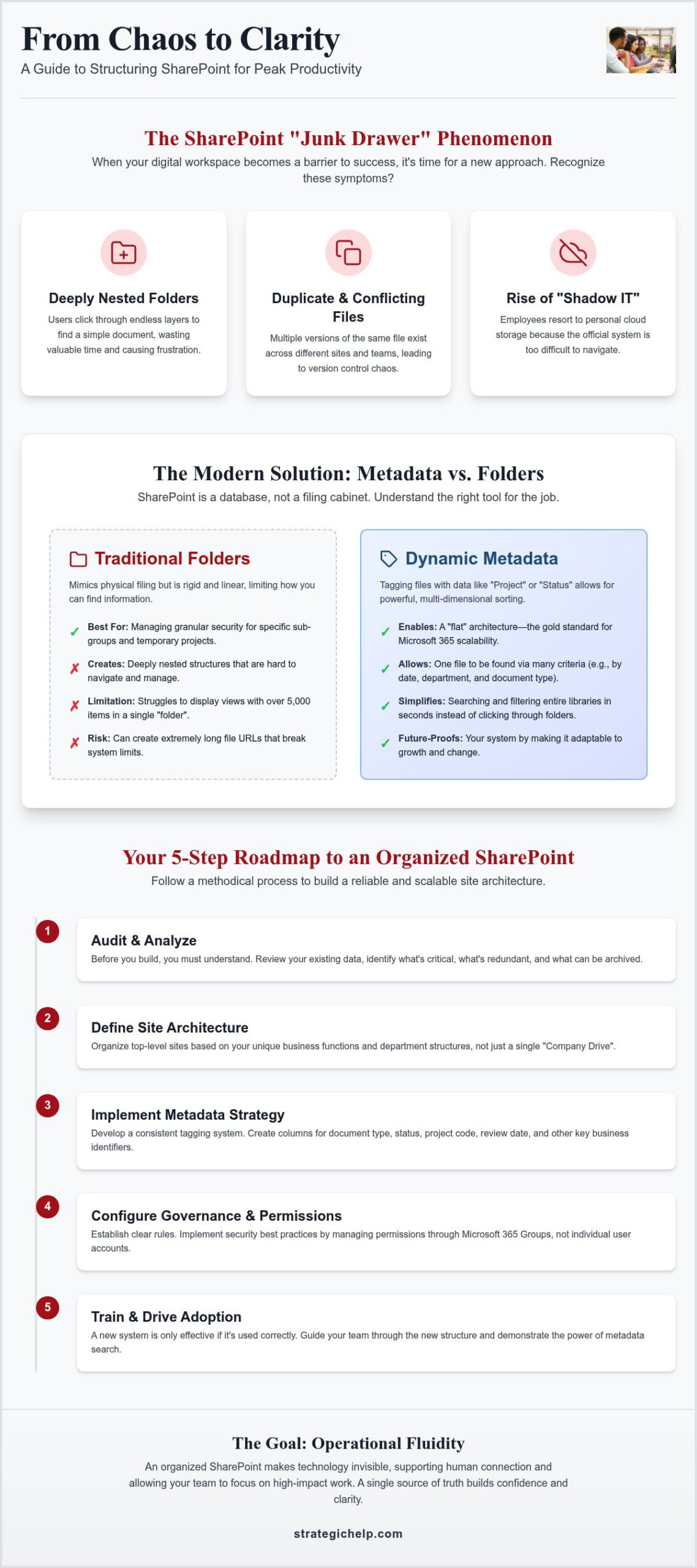
You can usually tell when a system is failing by looking for a few specific red flags. If your team is struggling, you’ll likely see these patterns emerge:
- Deeply nested folders: Users clicking through seven or eight layers just to find a basic template.
- Duplicate files: Versions of the same document living in multiple Teams channels or separate Sites.
- Shadow IT: Employees using personal Dropbox or Google Drive accounts because the official system is too difficult to use.
The Goal: Operational Fluidity
True organization isn’t about making things look pretty; it’s about operational fluidity. When you effectively organize company files in SharePoint, the technology becomes invisible. It supports the human connections within your company. The goal is a single source of truth where every team member knows where to find and share information without hesitation. This clarity builds confidence, allowing your team to focus on high-impact tasks that move your mission forward.
Metadata vs. Folders: Choosing the Right Organization Method
Choosing how to organize company files in SharePoint often feels like a tug-of-war between old habits and new possibilities. Most of us grew up using folders. They’re intuitive because they mimic a physical filing cabinet. However, SharePoint is fundamentally a database, and forcing it to act like a cabinet has its limits. For example, once a single folder view exceeds 5,000 items, the platform struggles to display them efficiently. This technical threshold is often the first sign that a system needs a more modern, scalable approach.
Enter metadata. This is simply a way of tagging files with information like project names, document types, or expiration dates. The value of metadata lies in its ability to let you view files from multiple angles. Instead of clicking through three levels of folders to find an invoice, you can filter your entire library by “Document Type: Invoice” and “Year: 2024” in seconds. It allows one file to exist in one place while being discoverable through many different search criteria.
A “flat” structure is now the gold standard for Microsoft 365. This means having more top-level sites and fewer nested folders. It prevents “URL bloat” where file paths become too long for the system to handle, and it makes managing security much simpler. If you’re feeling overwhelmed by the transition, a partner focused on Microsoft 365 custom management can help you design a roadmap that balances these technical benefits with your team’s current comfort level.
When to Use Traditional Folders
We don’t advocate for removing folders entirely. They remain the best tool for managing granular security permissions for specific sub-groups within a site. Folders also work well for temporary projects with a clear start and end date, where long-term searchability isn’t a priority. For teams moving from legacy file servers, keeping some familiar folder structures can make the initial migration feel much less disruptive and more supportive.
The Power of SharePoint Metadata
Metadata transforms a static list of files into a dynamic knowledge base. By creating custom columns, you can track project status or assign owners directly within the document library. This information doesn’t just help with sorting; it powers the entire search experience across your organization. When you combine this with “Content Types,” you can standardize document templates so that every “Project Proposal” created in your system automatically includes the correct tags. This methodical approach ensures you can organize company files in SharePoint in a way that scales as your business evolves.
How to Build Your SharePoint Site Architecture in 5 Steps
Building a digital structure that lasts requires more than just technical setup; it requires a deep understanding of how your team interacts. To organize company files in SharePoint effectively, we recommend a methodical approach that prioritizes clarity over complexity. By following these five steps, you can move from a state of digital friction to one of operational fluidity.
- Audit your existing data: Start by identifying “digital rot.” These are the outdated drafts, redundant files, and obsolete projects that no longer serve your mission. Deleting these now prevents old clutter from migrating to your new, clean environment.
- Map departments to Sites: Align your digital architecture with your actual business structure. Instead of one giant dumping ground, create distinct SharePoint Sites for departments like HR, Finance, and Operations.
- Establish naming conventions: Decide on a standard way to name files and libraries. This isn’t just about aesthetics; it’s about ensuring the search engine can find what it needs without being tripped up by vague titles.
- Configure Document Libraries: Set up specific libraries within each site for distinct functions. For instance, a Marketing Site might have separate libraries for “Brand Assets” and “Campaign Reports” to keep workstreams organized.
- Test with a pilot team: Before a full rollout, invite a small group to use the new structure. Gather their feedback and adjust the architecture to ensure it feels intuitive for the people who use it every day.
Site vs. Library vs. Folder: The Hierarchy
Understanding where a file should live is the first step toward a calm workflow. Use OneDrive for your personal drafts that aren’t ready for eyes. SharePoint Sites are the home for departmental collaboration and long-term storage. When you create a new Team in Microsoft Teams, it automatically generates a SharePoint Site behind the scenes. To organize company files in SharePoint without creating duplicates, ensure your team knows that the files they see in Teams are actually living in SharePoint. Hub Sites can then be used to connect these departmental sites, providing a unified navigation experience across the whole organization.
Standardizing Your Naming Conventions
Consistency is the quiet engine of a searchable system. Avoid using special characters like #, %, or & because these can break web URLs and cause syncing errors. Instead of deep folder nesting, encourage descriptive file names that include dates or project codes. A consistent naming convention serves as the essential backbone of your organization’s digital governance.
Governance and Permissions: Keeping the Chaos at Bay
Governance isn’t just about restriction; it’s about creating a safe space for your team to do their best work. When you organize company files in SharePoint, security should be baked into the foundation rather than added as an afterthought. We advocate for the principle of “Least Privilege.” This simply means giving people access only to the information they need to fulfill their roles. It reduces the risk of accidental deletions or data leaks while keeping the digital workspace clean and relevant for every user.
To keep management sustainable, avoid assigning permissions to individuals. Instead, use Microsoft 365 Groups. When a new person joins the marketing team, you simply add them to the “Marketing Group,” and they instantly gain the correct access across all relevant Sites and Teams. This methodical approach saves hours of administrative overhead and ensures that when someone leaves, their access is revoked in one central location.
Protecting company secrets also requires clear external sharing guardrails. SharePoint allows you to control whether files can be shared with people outside your organization and for how long those links remain active. Establishing a written “SharePoint Policy” helps your team understand these rules. It doesn’t need to be a dense legal document; a simple one-page guide on where to save specific types of data is often enough to maintain order.
Managing Access Without Friction
A common mistake in SharePoint management is “breaking inheritance” at the folder level. This happens when you set unique permissions for a specific folder inside a library, creating a complex web of hidden rules that are difficult to track. We recommend keeping permissions at the Site or Library level whenever you organize company files in SharePoint. To ensure your system stays healthy, schedule a quarterly permission audit. This is a quiet, deliberate review to confirm that the right people still have the right access, aligning with the latest NIST Cybersecurity Framework 2.0 standards for governance.
Training Your Team for Adoption
Even the most logical structure will fail if your team doesn’t use it. Adoption often stalls because users feel overwhelmed by the web interface. Teaching your team to use the “Sync” feature allows them to access SharePoint files directly through their familiar File Explorer or Finder, bridging the gap between old habits and new tools. However, we also encourage working inside the browser for real-time collaboration, as it prevents the “version chaos” that comes from downloading and re-uploading files.
Successful adoption often requires looking at your entire ecosystem. If you’re ready to move beyond basic storage, our Microsoft Teams optimization for business ensures your communication tools and file structures work in perfect harmony. For a personalized roadmap that addresses your specific challenges, consider our Microsoft 365 custom configuration services to build a foundation for long-term growth.
Designing Your Future State with Strategic Help
Designing a digital environment is like solving a complex puzzle where the pieces are constantly evolving. While the technical steps to organize company files in SharePoint are clear, the implementation often requires a nuanced understanding of your specific organizational culture. At Strategic Help, we don’t just act as a distant vendor; we step in as a curious partner and a wise guide. We’ve spent over 20 years navigating the nuances of digital infrastructure, helping organizations move past the frustration of messy systems and toward a future of operational fluidity.
Our “IT+” approach is built on the belief that technology should be an invisible support system for your mission. We look beyond the immediate need for file storage to see how your data structure impacts your team’s daily stress levels and overall security. When you work with us to organize company files in SharePoint, you’re not just getting a folder structure; you’re gaining a standards-based security framework that protects your digital presence while actively enhancing your team’s efficiency.
Beyond File Organization: A Holistic Technology Roadmap
A truly organized system doesn’t exist in a vacuum. We help you integrate SharePoint seamlessly with your existing workflows, whether you’re using Microsoft Teams or maintaining a hybrid environment with Google Workspace. This holistic view allows us to identify opportunities for automation that many businesses miss. For example, we can help you set up automated document approvals or notifications that trigger when a project reaches a new milestone. This ensures your infrastructure doesn’t just store information but actively supports your long-term growth and connectivity.
Start Your Consultation
Setting up your environment correctly from the beginning is the most effective way to prevent technical debt. A poorly configured site today can lead to years of migration headaches and security gaps down the road. Our promise is a transparent, methodical process that prioritizes your team’s success over a quick transaction. We invite you to begin a conversation about your digital future, focusing on how a steady, reliable partner can help you turn your technology into a tool for human connection. Let us help you organize your Microsoft 365 environment so you can focus on the work that truly matters.
Embracing a Future of Digital Clarity
Transitioning from digital chaos to a structured, efficient environment is a journey that pays dividends in team morale and operational fluidity. By shifting your focus from rigid folder hierarchies toward a dynamic, metadata-driven architecture, you create a system that grows alongside your organization. This methodical approach ensures that your data remains a strategic asset rather than a hidden burden for your staff to manage.
When you take the time to organize company files in SharePoint with a focus on governance and user adoption, you’re building more than just a storage space; you’re cultivating a single source of truth. Implementing group-based permissions and standardized naming conventions provides the stability your team needs to collaborate with confidence. It replaces daily frustration with a steady, reliable rhythm that supports your broader mission.
Strategic Help brings over 20 years of expertise in organizational efficiency to every partnership. As a Microsoft 365 Custom Management Specialist with a standards-based security focus, we prioritize solving the unique puzzles your business faces. We invite you to schedule a thoughtful consultation for your SharePoint configuration to begin designing your future state. Let’s work together to build a digital workspace that feels supportive, secure, and ready for long-term growth.
Frequently Asked Questions
Is it better to use folders or metadata in SharePoint?
A hybrid approach is often the most practical path forward for most organizations. While metadata allows for powerful filtering and multi-dimensional searching, folders remain a familiar tool for managing granular security permissions. Transitioning fully to metadata can be a steep learning curve for some teams. We often suggest starting with a flat folder structure and gradually introducing tagging to ensure your team feels supported throughout the change.
What is the 5,000-item limit in SharePoint, and does it matter for my organization?
The 5,000-item limit refers to the “List View Threshold,” which is the maximum number of items SharePoint can display in a single view at once. It doesn’t restrict your total storage, but it does mean that poorly organized libraries will become slow or throw errors. To avoid this friction, you should use indexed columns, metadata, or multiple document libraries to keep your active views manageable and efficient.
How do I move my company files from a local server to SharePoint?
Moving files requires a methodical audit before using tools like the SharePoint Migration Manager. You shouldn’t just “lift and shift” your old clutter; instead, use this transition as an opportunity to organize company files in SharePoint using a modern architecture. This process involves mapping your local drives to specific SharePoint sites and ensuring that permissions are correctly configured before the data transfer begins to prevent any security gaps.
Can I sync SharePoint files to my computer like I do with Dropbox?
Yes, you can use the OneDrive sync app to access SharePoint files directly through your File Explorer or Finder. This allows you to work offline and have changes sync automatically when you reconnect. However, we recommend using the “Add shortcut to OneDrive” feature rather than the traditional sync button. It provides a more stable and organized way to manage shared libraries across your local device without cluttering your sidebar.
What is the difference between OneDrive and SharePoint for company files?
Think of OneDrive as your personal digital briefcase and SharePoint as the company’s central filing cabinet. OneDrive is intended for private drafts or documents you aren’t ready to share with the wider team yet. SharePoint is the collaborative platform where departmental data lives. When you organize company files in SharePoint, you’re creating a permanent, shared home for finished work and official organizational records that everyone can access.
How do I prevent employees from deleting important files in SharePoint?
You can prevent accidental deletions by implementing “Read-Only” permissions for specific users or using the “Least Privilege” principle. Additionally, Microsoft 365 includes a Recycle Bin that retains deleted items for 93 days. You can also enable “Retention Policies” to ensure files cannot be permanently removed for a set period. These guardrails provide a necessary safety net while still allowing your team the freedom to collaborate effectively.
Is SharePoint secure enough for sensitive financial or legal documents?
SharePoint is highly secure when configured with standards-based IT security protocols. It offers robust encryption, multi-factor authentication, and Sensitivity Labels that can automatically protect documents based on their content. By aligning your configuration with frameworks like NIST 2.0, you can ensure that sensitive financial or legal data remains accessible only to authorized personnel, even if a file is accidentally shared with someone outside your organization.
How much does it cost to have a professional configure my SharePoint sites?
The investment for professional configuration varies based on the complexity of your data and the number of users involved. Rather than a flat fee, we focus on the long-term value of preventing technical debt and operational friction. A professional setup ensures your architecture supports growth and high team adoption. We recommend a consultation to discuss your specific needs and develop a roadmap that fits your unique organizational goals.