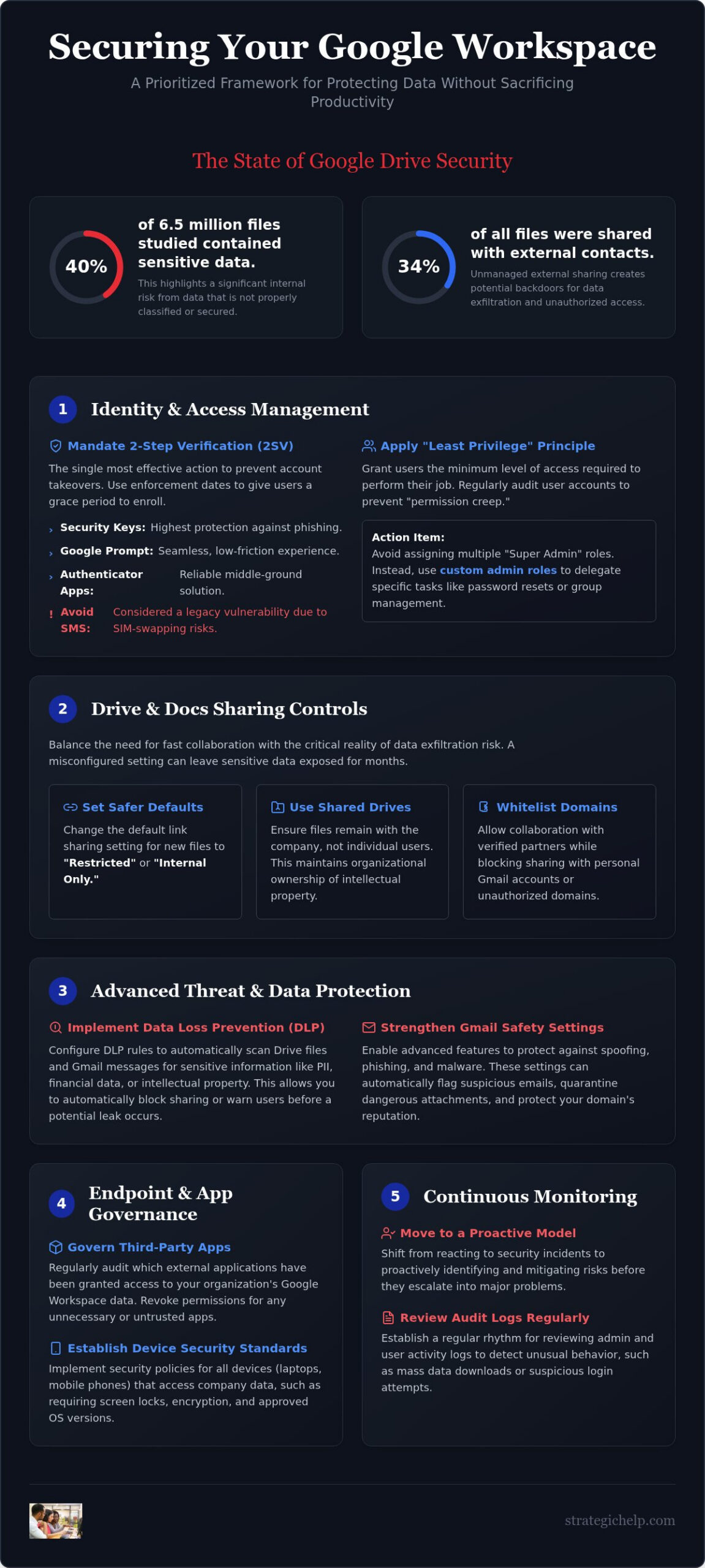
A recent study of 6.5 million Google Drive files revealed that 40.2% contained sensitive data, yet over 34% of all files were shared with external contacts. These numbers highlight a common tension for many modern leaders. You recognize the need for rigorous Google Workspace security settings, but you likely worry that tightening the screws too much will frustrate your employees or slow down essential projects. It’s frustrating to stare at a complex admin console and wonder if one wrong click might lock out your entire team or leave a back door open for a data leak.
We believe that true security shouldn’t feel like a burden. It should be the quiet, reliable foundation that allows your team to collaborate with total confidence. This guide offers a methodical, expert-led path to securing your organization’s intellectual property without sacrificing productivity. We’ll walk you through a prioritized checklist of actions, from identity lifecycle management to advanced sharing restrictions. By the end, you’ll have a scalable framework that protects your data today and grows alongside your business through 2026.
Key Takeaways
- Strengthen your organization’s first line of defense by prioritizing 2-Step Verification as part of a robust identity management strategy.
- Audit your Google Workspace security settings to balance the need for external collaboration with the necessity of protecting your intellectual property.
- Implement Data Loss Prevention and advanced Gmail safety settings to automatically detect and flag sensitive information or spoofing attempts.
- Manage the risks of the modern office by governing third-party app permissions and establishing clear security standards for all team devices.
- Move toward a proactive security model by establishing a regular rhythm for reviewing audit logs and using investigation tools to identify potential leaks.
Identity and Access Management: Securing the Digital Front Door
Identity and Access Management (IAM) acts as the fundamental layer of your organization’s digital defense. Think of it as a sophisticated gatekeeper that verifies every person trying to enter your virtual workspace. In the past, security was often reactive, where admins only checked logs after something went wrong. Today, we focus on proactive access control, where the system itself prevents unauthorized entry before it happens. This shift ensures that your Google Workspace security settings work as a preventative shield rather than a forensic tool.
One of the most vital actions you can take is the regular audit of user accounts. Over time, employees change roles or leave the company, yet their access levels often remain stagnant. This “permission creep” creates unnecessary vulnerabilities. A simple, recurring review of who has access to what ensures your digital perimeter remains tight and relevant to your current team structure. It’s a practice that prioritizes clarity and reduces the “attack surface” of your organization.
Mandating 2-Step Verification (2SV)
2-Step Verification remains the single most effective way to prevent account takeovers. When choosing a method, security keys offer the highest protection against phishing, while the Google Prompt provides a seamless, low-friction experience for most employees. Authenticator apps serve as a reliable middle ground. To avoid disrupting your team’s workflow, we recommend using “Enforcement Dates” in the admin console. This gives users a specific grace period to enroll their devices before the requirement becomes mandatory. By 2026, SMS-based codes are widely viewed as a legacy vulnerability because they are susceptible to SIM-swapping and interception by sophisticated actors.
Refining Administrative Roles
The principle of “Least Privilege” is a cornerstone of a healthy security posture. It suggests that individuals should only have the minimum level of access required to perform their specific job. Many organizations mistakenly assign multiple “Super Admin” roles for convenience, which creates a significant risk if even one account is compromised. A single compromised Super Admin can change every setting in your Google Workspace security settings profile.
Instead, utilize custom admin roles to delegate specific tasks, such as password resets or group management, without granting full control over the entire domain. At Strategic Help, we often partner with our clients to map these technical permissions directly to their organizational chart. This consultative approach ensures that your technical infrastructure reflects your actual business operations, providing a clear and manageable path toward long-term security and operational fluidity.
Drive and Docs Sharing: Balancing Collaboration with Privacy
Digital collaboration creates a natural tension between operational speed and data safety. While we want teams to move fast, the risk of data exfiltration is a constant reality. Recent research indicates that 34.2% of all Google Drive files are shared with external contacts. This makes your Google Workspace security settings for Drive and Docs a critical focus for any growing organization. We suggest shifting the default setting for new files to “Restricted” or “Internal Only.” It is much simpler to grant access when a specific need arises than to discover that sensitive data has been accessible to the public for months.
Shared Drives offer a powerful way to maintain organizational ownership of your intellectual property. Unlike “My Drive,” where the individual user owns the file, Shared Drives ensure that files stay with the company even if an employee leaves. Auditing these shares doesn’t have to be a manual, file-by-file chore. By using the admin audit logs, you can generate reports that highlight every file shared outside your domain, allowing you to address risks systematically. If you find the configuration process overwhelming, our team can help you plan and automate your platform management to ensure your data stays where it belongs.
External Sharing Controls
Trust is essential for modern business, but it should be structured. You can configure “Whitelisted Domains” to allow collaboration with verified partners while blocking sharing with personal Gmail accounts or unauthorized domains. The “Access Checker” feature is another helpful layer; it prompts users to reconsider their sharing settings before they send a file to a meeting invite list. Treat every external link as a temporary bridge rather than a permanent door by mandating expiration dates for all shared access.
Shared Drive Security Settings
Within Shared Drives, you have granular control over how data moves. You should consider restricting the ability for users to move files out of a Shared Drive into their personal folders. This keeps the data under your governance. Pay close attention to the “Manager” versus “Content Manager” roles. Content Managers can edit and delete files, but only Managers can change folder structures or membership. This distinction prevents accidental restructuring of your entire filing system. For organizations operating in hybrid environments, balancing these settings with your Microsoft 365 SharePoint configuration guide ensures a consistent security posture across all your cloud storage platforms.
Advanced Threat Protection and Data Loss Prevention (DLP)
Data protection isn’t just about who gets in; it’s about what leaves. Data Loss Prevention (DLP) acts as an invisible safety net, scanning for sensitive patterns like Social Security numbers or credit card details. While Google’s AI handles many standard threats, your specific Google Workspace security settings allow you to tailor these protections to your industry’s unique risks. Instead of a rigid “block everything” approach, many organizations find success with a “detect and notify” strategy. This builds trust with your team while ensuring that accidental leaks are caught before they cause damage.
Email remains a primary target for sophisticated attacks. Gmail’s safety settings now include “Safety Sandboxing,” which opens suspicious attachments in a secure, isolated environment to check for malicious behavior before they reach a user’s inbox. This proactive layer pre-emptively flags spoofing attempts that might otherwise slip through. By integrating these tools, you move from a reactive posture to one of quiet, confident oversight. It’s about creating a digital environment where the technology does the heavy lifting, allowing your team to focus on their primary mission.
Customizing DLP Rules
Effective DLP rules are built on patterns. You can create triggers that look for specific “Confidential” headers or internal project codenames. When these rules are triggered, you have a choice. “Audit only” allows you to see how often sensitive data is shared without interrupting the work, which is excellent for an initial testing phase. Once you’re confident in the accuracy of your rules, switching to “Block” provides a hard stop for high-risk data transfers. Automated alerts keep admins informed in real-time, allowing for a quick response without needing to hover over every individual transaction.
Gmail Advanced Safety
Your domain’s reputation is a valuable asset. Implementing SPF, DKIM, and DMARC ensures that your outgoing mail is verified and protects your brand from being used in phishing campaigns. Inside the organization, configuring “Unauthenticated Email” warnings helps your team identify when a sender’s identity can’t be confirmed. These visual cues empower users to become part of your security strategy. At Strategic Help, we view email security as the foundation of your digital presence. It’s about more than just technical toggles; it’s about creating a secure communication channel that your clients and partners can trust implicitly.
Endpoint Management and Third-Party App Governance
In the modern “boundaryless office,” your digital perimeter is no longer defined by your physical walls. It’s defined by the laptops, tablets, and smartphones your team uses every day. This shift means that device security matters just as much as account security. If a user logs in from a compromised or unmanaged personal device, even the strongest password can’t protect your data. Finding the right balance in your Google Workspace security settings involves securing these endpoints without making your team feel like their privacy is being invaded.
The convenience of “Sign in with Google” is a double-edged sword. While it simplifies the user experience, it often invites “Shadow IT,” where employees inadvertently grant third-party applications broad permissions to read their emails or access Drive files. Shadow IT occurs when employees use unauthorized software to solve immediate problems, bypassing organizational oversight and creating silent security gaps. Managing these OAuth permissions is essential for maintaining a clean and secure environment. If you’re looking to refine your device policies, our team can provide expert Google Workspace platform planning to help you find the right balance between control and convenience.
Managing App Access and OAuth
Reviewing the “App Access Control” list is a vital administrative habit. This menu reveals exactly which external services have requested access to your tenant. You should proactively restrict high-risk API scopes for any unverified third-party applications. This ensures that a simple productivity tool or browser extension doesn’t end up with full read and write access to your company’s sensitive communications. It’s a methodical way to prune your digital connections and keep your data footprint manageable.
Mobile Device Management (MDM)
For organizations with a “Bring Your Own Device” (BYOD) culture, “Work Profiles” on Android and iOS are a sophisticated solution. They create a logical wall between personal photos and business documents. This allows you to enforce mandatory screen locks and remote wipe capabilities for the business data without ever touching the user’s personal files. On desktops, “Endpoint Verification” ensures that only healthy, company-approved machines can access your workspace. This layer of verification confirms that the device meets your security standards before it’s allowed to connect to your sensitive resources.
Continuous Monitoring: Audit Logs and Strategic Support
Establishing your digital defenses is a significant first step, but maintaining them requires a shift in perspective. Security is a continuous process rather than a one-time project. As your team grows and your operational needs evolve, your Google Workspace security settings must be reviewed on a monthly or quarterly basis to remain effective. This steady rhythm of oversight ensures that the protocols you’ve put in place continue to protect your intellectual property without becoming a bottleneck for your staff. It’s about moving from a state of initial configuration to a state of quiet, confident management.
The Security Investigation Tool is an essential asset for this ongoing work. It allows you to move beyond simple observation and perform deep, forensic traces into the origin of potential leaks or unauthorized access attempts. By setting up automated alerts for high-risk events, such as “Suspicious Login Activity” or “Admin Privilege Changes,” you ensure that your team is notified the moment an anomaly occurs. This proactive approach allows you to address issues in real-time, transforming your security posture from reactive firefighting to strategic prevention.
Interpreting Audit Logs
Audit logs provide the raw data needed to understand the health of your tenant, but they require a methodical eye to interpret. We recommend focusing on a few key events during your “Security Health Check” routine. Monitor token grants to see which third-party apps are gaining access to your data, and keep a close watch on external sharing patterns to catch accidental over-sharing early. For organizations with strict compliance needs, Google Vault provides a reliable path for eDiscovery and long-term data retention, ensuring that your historical data remains accessible and protected even after it has been deleted from active drives.
The Value of Managed IT+ Services
Transitioning from manual management to a more automated, supported model allows your leadership team to focus on growth rather than technical toggles. Strategic Help provides a thoughtful path to ongoing security management through our IT+ approach. We don’t just look at individual settings; we integrate your digital infrastructure into your broader business technology roadmap. This ensures that every security measure we implement serves to amplify your team’s connectivity and operational fluidity. Let us help you design a secure, efficient Google Workspace environment that reflects your organization’s unique mission and values.
Establishing a Resilient Digital Foundation
Establishing a secure digital environment is a journey of continuous refinement rather than a single destination. We’ve explored how a methodical approach to identity management and granular sharing controls can protect your intellectual property without slowing down your team’s creative rhythm. By embracing advanced threat protection and consistent endpoint monitoring, you create a workspace where collaboration and privacy coexist naturally. This proactive stance allows your organization to remain agile while staying protected against evolving threats.
Regularly auditing your Google Workspace security settings ensures that your technical infrastructure remains a tool for human connection rather than a source of organizational risk. As IT Standards-based Security experts with over 20 years of experience in digital infrastructure, we’re here to help you solve these complex puzzles. Whether you need certified Google Workspace planning or migration support, we invite you to request a Google Workspace Security Audit with Strategic Help to align your technology with your broader mission. With a scalable framework in place, you can move forward with the confidence that your company’s data is protected and your team is empowered to grow.
Frequently Asked Questions
What are the most critical Google Workspace security settings for a small business?
Mandating 2-Step Verification is the most vital step for any small business. It prevents the vast majority of account takeover attempts. You should also configure your sharing defaults to “Internal Only” to prevent accidental data exposure. These two Google Workspace security settings provide a high-impact baseline that protects your intellectual property without requiring a large IT team to manage complex daily operations.
How do I prevent employees from sharing sensitive Google Drive files externally?
You can implement Data Loss Prevention (DLP) rules to automatically detect and block the sharing of files containing sensitive patterns like credit card numbers. Additionally, you can restrict external sharing to specific whitelisted domains or disable it entirely for certain organizational units. Setting the global default for new files to “Restricted” ensures that users must make a conscious, intentional choice before any data leaves your internal environment.
Is Google Workspace security better than Microsoft 365?
Both platforms offer enterprise-grade security, but they approach it differently. Google Workspace excels in its “cloud-native” simplicity and robust identity-first protections. Microsoft 365 offers deep integration for organizations heavily reliant on legacy desktop applications. The “better” choice usually depends on your team’s existing workflow and how well your organization manages the specific Google Workspace security settings or Microsoft equivalents. We often help organizations evaluate which platform aligns best with their operational goals.
Can I see who has accessed a specific file in Google Workspace?
Yes, you can track file access through the “Activity Dashboard” for individual documents if that feature is enabled. For a more comprehensive view, admins can use the Drive audit logs in the Admin console. These logs provide a detailed history of views, edits, and sharing changes. This visibility is essential for tracing the origin of potential leaks and ensuring that sensitive data remains within authorized hands.
What happens if an admin account is compromised in Google Workspace?
A compromised Super Admin account gives an attacker total control over your domain, including the ability to delete data or change every security protocol. This is why we advocate for the principle of “Least Privilege,” where you limit the number of Super Admins to the absolute minimum. You should also enforce the use of physical security keys for all admin accounts to provide the highest level of protection against phishing.
Does Google Workspace comply with HIPAA or GDPR standards?
Google Workspace supports compliance with both HIPAA and GDPR, but it isn’t compliant “out of the box.” For HIPAA, you must sign a Business Associate Agreement (BAA) with Google and configure your settings to protect Protected Health Information (PHI). For GDPR, you need to manage data processing terms and ensure your sharing policies align with privacy requirements. Compliance is a shared responsibility between Google’s infrastructure and your specific administrative configurations.
How often should I review my organization’s security settings?
We recommend a formal review of your security posture at least once a quarter. However, monthly check-ins on audit logs and user access levels are better for growing teams. Regular reviews help you catch “permission creep” and ensure your settings still reflect your current staff and partner relationships. This steady rhythm transforms security from an emergency reaction into a calm, manageable part of your operational routine.
What is the difference between Google Vault and standard Drive backup?
Google Vault is an eDiscovery and archiving tool designed for legal retention and search, not for traditional data recovery. It allows you to preserve data even if a user deletes it from their Drive. A standard backup is focused on restoring lost files to their original state after a deletion or technical failure. While Vault is excellent for compliance, it doesn’t replace the need for a dedicated backup strategy to ensure business continuity.