You’ve heard about Teams and SharePoint. Maybe rave reviews, maybe gripes and horror stories. Microsoft’s platforms, range of services, apps, and security systems are confusing – and if the implementation and training is not done right will cause a lot of noise and poor user experience.
Three of the most confusing are SharePoint, Teams, and OneDrive, in terms of how they fit or do not fit together.
It is imperative that your Microsoft 365 and Teams and SharePoint configuration is carefully set up to match your organization goals and mission. The Teams information architecture provides a clarity to your knowledge base and internal AI prompt responses.
Many leaders eventually realize that subscribing to MS365 isn’t enough to provide improvements in productivity and continuity. You’ve likely experienced the frustration of information silos, duplicate files, or the nagging worry that external sharing settings aren’t quite as secure as they should be. A thoughtful approach to configuring Microsoft Teams and SharePoint bridges the gap between having a tool and actually gaining value from it. It’s about moving away from personal file storage and toward a policy and information based file storage systems that support your mission.
We understand that the confusion between Teams and SharePoint often leads to low user adoption and digital fatigue. You deserve a workspace that facilitates a calm workflow rather than adding to the daily noise. This guide provides a strategic roadmap in 2026/27 to help you establish clean file structures and automated governance. We’ll show you how to transform your environment into a secure, high-efficiency engine that protects your data while empowering your team to do their best work without the technical friction.
Key Takeaways
- Learn why a custom Microsoft 365 Teams and SharePoint configuration is essential for moving beyond default settings to a structured information architecture.
- Understand the specific roles of Teams, Shared files, Team Sites, and Communication Sites in building a logical and searchable file hierarchy.
- Discover how to implement standards-based organization and security that allows for safe external collaboration while maintaining full control over your digital assets.
- Explore the discovery process required to audit existing data and align your digital workspace with your team’s actual workflow.
- Recognize how professional expertise bridges the gap between possessing software and achieving a high-efficiency, mission-aligned operation.
Defining a Strategic Microsoft 365 Teams and SharePoint Configuration
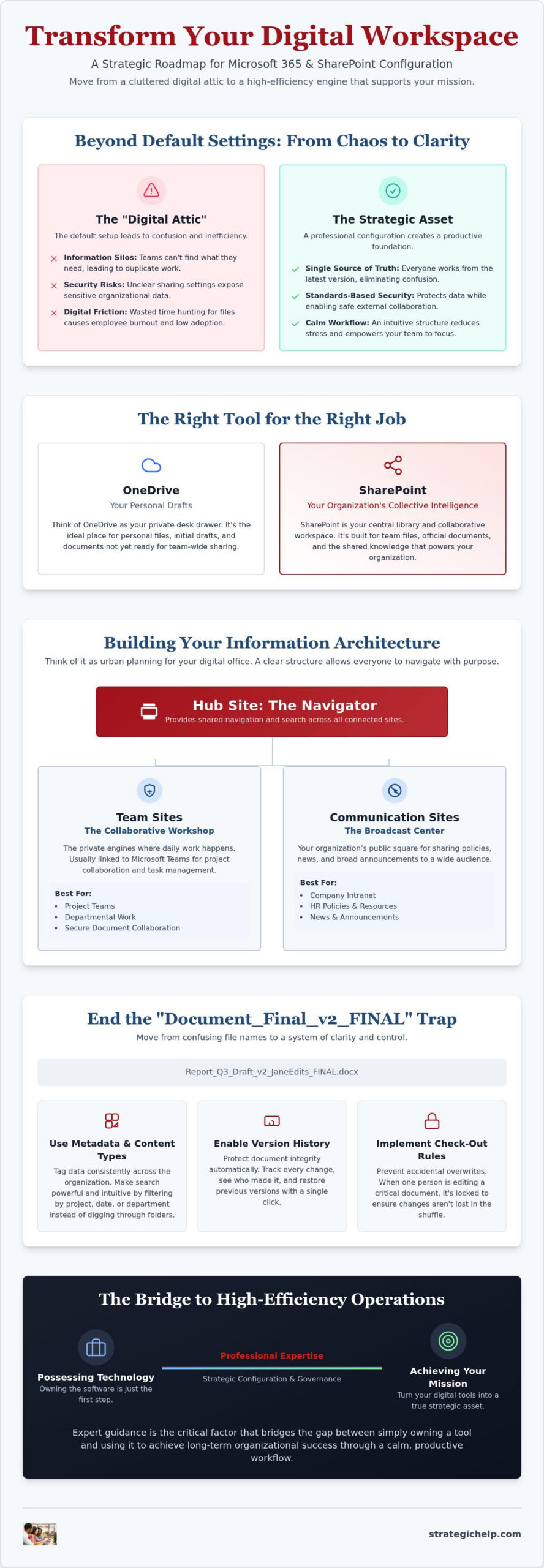
Owning a license for Microsoft 365 is a beginning, not a destination. Many organizations treat their digital environment as a digital attic, tossing files into a default setup without a clear plan. This often leads to digital friction, where employees spend more time hunting for documents than doing their actual work. A professional Microsoft 365 SharePoint configuration transforms this space from a basic file dump into a strategic asset. It’s about moving beyond out of the box settings that weren’t designed for your specific mission.
The Tenant Admin acts as the primary architect in this process. They don’t just manage technical toggles; they establish the foundational rules of the road that prevent organizational chaos. By setting these protocols early, you create a system that respects your team’s time and mental energy. This thoughtful approach directly reduces the burnout that stems from messy, unorganized digital workspaces.
Information Architecture vs. Simple File Storage
It’s vital to distinguish between OneDrive and SharePoint. OneDrive is for your personal drafts, while SharePoint serves as the home for your organization’s collective intelligence. The traditional reliance on deep, nested folder structures often creates silos where information goes to die. We advocate for a shift toward metadata and logical site structures that reflect how your team actually works. This approach maps your real-world workflows to your digital environment. When you design for people rather than just data, you remove the barriers to efficiency. Our perspective as a wise guide is that technology should always amplify human connection, not hinder it through complex, hidden hierarchies.
The Core Objectives of a Professional Setup
A successful Microsoft 365 SharePoint configuration aims for a Single Source of Truth. This means every team member knows exactly where the latest version of a policy or project plan lives, eliminating the risk of working from outdated files. Achieving this requires a delicate balance. You need rigorous, standards-based security to protect sensitive data, yet the system must remain approachable enough for daily collaboration. A scalable foundation ensures that as your organization grows, your digital infrastructure remains a source of stability rather than a bottleneck. Professional expertise serves as the essential factor here, bridging the gap between simply owning a tool and achieving long-term organizational success through a calm, productive workflow.
Core Elements of a Professional SharePoint Setup
A professional Microsoft 365 SharePoint configuration requires a clear understanding of how different site types interact. Think of it as urban planning for your digital office. Without a map, your team gets lost. With one, they move with purpose. The hierarchy you establish now determines how easily your staff can access the information they need to succeed in their roles.
Team Sites vs. Communication Sites: When to Use Which
Team Sites are the private engines where daily work happens. They’re usually linked to Microsoft Teams, serving as the secure backend for project collaboration and task management. Communication Sites act as your organization’s broadcast center. You’ll use them for your intranet, sharing policies, and broad announcements. Connecting these through Hub Sites creates a unified navigation experience. This ensures that no matter where an employee lands, they can find their way across the tenant without frustration. Consider these three core site types:
- **Teams: **Building blocks for organization information clarity and continuity.
- Hub Sites: These provide shared navigation and search across multiple sites, creating a cohesive experience.
- Team Sites: These are focused on collaboration and are usually connected to a Microsoft 365 Group for automated permissions.
- Communication Sites: These are designed to inform a wide audience with a beautiful, responsive layout for news and resources.
Document Libraries and Metadata Strategy
The goal is to stop the "Document_Final_v2" trap once and for all. Standardized naming conventions are a start, but the real power lies in metadata. By implementing Content Types, you tag data consistently across the entire organization. This makes search actually work. Instead of digging through endless folders, users filter by project, date, or department. We also recommend enabling version history and check-out rules. These protocols protect document integrity, ensuring that two people don’t accidentally overwrite each other’s work.
Integrating these elements into a "Calm Workflow" means your team doesn’t have to jump between separate apps. SharePoint handles the heavy lifting of storage and security, while Teams provides the interface for discussion. By leveraging Microsoft 365 Groups, you automate permission management. When a new member joins a group, they automatically get the access they need. This reduces the burden on IT and keeps the focus on your organizational goals. If you find the technical nuances of Microsoft 365 Custom Management a bit overwhelming, remember that expert guidance is the bridge to achieving this balance. A thoughtful Microsoft 365 SharePoint configuration isn’t just a technical task; it’s a way to foster a more connected, efficient culture.
Standards-Based Security and Governance
Security is often treated as a list of features to be toggled on or off. However, a professional Microsoft 365 SharePoint configuration views security as a cohesive, standards-based framework. We believe technology should serve your mission, not create new risks. By implementing IT standards-based security, you ensure your digital assets remain protected without hindering the collaborative spirit of your organization. It’s about building a foundation of trust that allows your team to work with confidence.
Central to this approach is the principle of "Least Privilege." This protocol ensures every team member has exactly the access they need for their role, and nothing more. It reduces the digital footprint of your organization and prevents the accidental exposure of sensitive files. It’s a methodical way to build a calm workflow where everyone knows their boundaries and feels secure within them. Simply owning the software doesn’t grant this level of protection; it requires the strategic intelligence of a guide who understands how to align technical settings with organizational safety.
External Sharing and Guest Access Controls
Many organizations feel a sense of anxiety regarding external sharing. You want to collaborate with partners, but you don’t want to lose control of your data. We address this by configuring tenant-level sharing settings that act as your first line of defense. Sensitivity Labels take this further by automatically encrypting and restricting sensitive documents based on their content. This means a "Confidential" tag stays with the document, even if it leaves your environment. Auditing these permissions is just as vital. You must regularly review who has access to your data and ensure guest access is revoked once a project concludes.
Data Loss Prevention (DLP) and Compliance
Protecting Personally Identifiable Information (PII) isn’t just a technical requirement; it’s a commitment to your stakeholders. Data Loss Prevention (DLP) policies act as an automated guardian, identifying sensitive patterns in your documents and preventing them from being shared inappropriately. This is coupled with Retention Policies that meet legal and regulatory requirements automatically. Whether your sector requires you to keep financial records for seven years or destroy specific data after three, the system manages the lifecycle for you. This level of automation is what separates a basic setup from a professional Microsoft 365 SharePoint configuration that truly adds value to your organization.
Implementation Roadmap: From Planning to User Adoption
Successful implementation begins long before the first file is moved. It starts with a Discovery Phase, where we audit your existing data and identify where your team feels the most friction. Simply possessing the technology does not solve efficiency problems. You need to understand the specific organizational pain points first. This stage is about listening to the people who use the tools every day and ensuring the Microsoft 365 Teams and SharePoint configuration addresses their actual needs rather than just past pesonal preferences, or technical requirements.
A roadmap is only as good as its execution. Moving from legacy servers or Google Workspace requires a methodical approach that prioritizes your organizational mission. We view this as a strategic transition rather than a simple data transfer. It is a chance to reset your digital environment and build a foundation that supports a calm, productive workflow for years to come.
The Thoughtful Migration Process
We describe migration as cleaning the "Digital Attic." It is the perfect time to decide what to move, what to archive, and what to delete. This prevents the transfer of old, messy habits into your new, clean environment. Professional mapping of permissions is critical here. While tools like the SharePoint Migration Tool (SPMT) are helpful, they cannot replace the strategic intelligence required to ensure your security standards remain intact. You must ensure that legacy access levels translate correctly to your new Microsoft 365 environment to prevent data leaks or broken workflows.
Training for Efficiency and Adoption
User adoption is the true measure of a successful setup. If your team does not understand the "Why" behind the new structure, they will likely revert to old, inefficient habits. Our training moves beyond technical "how-to" sessions. We focus on teaching the principles of "Calm Workflows" that reduce notification fatigue and context switching. By establishing a "SharePoint Champion" network within your organization, you create a sustainable support system where peer-to-peer learning thrives. This human-centric approach ensures that your Microsoft 365 Teams and SharePoint configuration actually increases the value of the tool to your organization.
Configuration is not a "set it and forget it" task. It requires continuous optimization, where you regularly review site usage and adjust the architecture as your mission evolves. If you are ready to move beyond basic file storage and transform your workspace into a high-efficiency engine, our Microsoft 365 Custom Management services provide the expert guidance needed to bridge the gap between owning a tool and achieving organizational success.
Why Professional Configuration is a Strategic Investment
Viewing technology as a one-time purchase is a common pitfall for many growing organizations. The real value of a Microsoft 365 SharePoint configuration lies in its ongoing alignment with your organization’s mission. "Digital Chaos" isn’t just a minor annoyance. It’s a significant operational cost. Every minute a staff member spends hunting for a misplaced policy or recreating a lost file is a minute stolen from your core impact. When you invest in a professional setup, you aren’t just buying a file system; you’re building a foundation for operational fluidity and team confidence.
A thoughtful configuration positions SharePoint as more than a repository. It becomes a tool for human connection. By removing the technical barriers that cause friction between departments, you allow your team to focus on the nuances of their work rather than the mechanics of the software. This shift from a simple tool owner to a strategic user is what drives long-term success.
Avoiding the Chaos of DIY Setup
When digital tools are difficult or confusing to use, employees naturally seek the path of least resistance. This often leads to the rise of "Shadow IT," where sensitive organizational data ends up in personal cloud accounts or unmanaged messaging apps. Professional configuration prevents this by ensuring that the most secure path is also the most intuitive one. It also helps you avoid accumulating "technical debt." A DIY setup might work for a week, but without a structured information architecture, it quickly becomes a tangled web that is expensive and time-consuming to untangle later. Standards-based security provides the quiet authority of knowing your assets are protected by proven protocols.
Partnering for Long-Term Success
Technology should serve as a tool for human connection, not a source of frustration. As your organization evolves, your digital workspace must adapt alongside it. This is why we move away from the distant vendor relationship and toward a partnership as a wise guide. Managed IT services provide the continuous oversight needed to maintain a healthy, searchable, and secure environment. This includes regular roadmap planning to ensure your tools keep pace with your growth. We prioritize the relationship over the transaction, focusing on how technical actions lead to broader organizational benefits.
Achieving a calm workflow requires a blend of technical expertise and strategic intelligence. If you’re ready to bridge the gap between simply owning a tool and truly maximizing its value, we invite you to Explore Custom Microsoft 365 Management with Strategic Help. Let’s work together to transform your digital infrastructure into a high-efficiency engine that supports your mission for years to come.
Building a Foundation for Organizational Fluidity
Transforming your digital workspace is about more than just organizing files. It’s about creating an environment where your team can thrive without the weight of digital friction. We’ve explored how a strategic Microsoft 365 SharePoint configuration moves you beyond default settings to a system that prioritizes clarity, security, and mission alignment. By establishing a logical hierarchy and automating governance, you protect your data while empowering your staff to do their best work.
Owning the tools is only the first step. The real value comes from knowing how to use them to amplify your impact. With over 20 years of digital infrastructure experience, we specialize in building "Calm Workflows" that bridge the gap between technical potential and organizational success. Whether you’re a nonprofit or a growing business, your technology should support your people, not the other way around. We invite you to Schedule a Consultation for Custom SharePoint Configuration to begin your journey toward a more efficient, secure, and peaceful digital office. You have the tools; let’s work together to make them work for you.
Frequently Asked Questions
What is the difference between SharePoint and OneDrive for business?
OneDrive is for personal drafts and individual work files; SharePoint is for shared organizational information. Think of OneDrive as your private digital desk and SharePoint as the central office library. While you own your OneDrive space, SharePoint sites are owned by the organization and governed by shared protocols. This distinction is vital for maintaining a clean information architecture and ensuring that team-wide data doesn’t get lost in individual accounts.
How do I secure SharePoint for external collaboration with clients?
You secure external collaboration by configuring tenant-level sharing settings and applying Sensitivity Labels. These tools allow you to restrict access to specific domains or require guest users to use multi-factor authentication. By setting these foundational rules, you can collaborate with partners without losing control of your digital assets. Expert guidance ensures these settings are balanced so that security doesn’t become a barrier to productive, calm workflows with your clients.
Is it better to use folders or metadata in SharePoint libraries?
Metadata is generally the more efficient choice for modern organizations, as it enables powerful filtering and search capabilities. While folders are familiar, they often lead to deep, nested silos where files are easily lost. A professional Microsoft 365 SharePoint configuration uses metadata to tag files by project, department, or status. This approach creates a more fluid digital workspace where information is discoverable in seconds rather than buried in the "digital attic."
How does SharePoint integrate with Microsoft Teams for file storage?
SharePoint provides the underlying storage engine for every file shared within Microsoft Teams. When a new Team is created, a corresponding SharePoint site is automatically provisioned to house its documents. This means you get the best of both worlds: the conversational speed of Teams and the robust document management features of SharePoint. Understanding this link is essential for managing permissions and ensuring your data remains organized across both platforms.
Can SharePoint help my organization meet HIPAA or GDPR compliance?
SharePoint offers robust features like Data Loss Prevention (DLP) and Retention Policies that are essential for HIPAA or GDPR compliance. These tools automatically identify sensitive data, such as personally identifiable information, and apply protective rules to prevent unauthorized sharing. However, simply having these tools isn’t enough. Achieving true compliance requires a strategic approach that aligns technical configuration with your specific legal obligations and organizational standards.
What are the first steps in migrating from a local file server to SharePoint?
The process begins with a Discovery Phase to audit your existing data and identify your team’s real-world workflows. You should decide what to move, archive, or delete before the migration starts. This prevents you from carrying "digital chaos" into your new system. Mapping your legacy permissions to the new Microsoft 365 SharePoint configuration is also critical to ensure that your security standards remain consistent throughout the transition.
How much does a professional SharePoint configuration typically cost?
The investment required for a professional setup depends on the size of your organization and the complexity of your data structure. Rather than a one-size-fits-all price, costs are typically based on the depth of the planning, security requirements, and ongoing management needs. We focus on providing a strategic investment that aligns your technology with your mission. A consultation is the best way to determine the specific scope and value for your organization.