You already know that your Microsoft 365 and Google Workspace (We’ll talk about Google in a different article) platform tools could be doing more for you and your staff, rather than taking more time and attention. Achieving true Microsoft Teams optimization for business is ultimately about aligning the platform’s extensive capabilities with the way your staff work – and to help them find more productive ways to work..
We’ve seen how a few intentional shifts in configuration can transform a cluttered interface into a calm, reliable environment. This guide will show you how to move beyond basic chat functions to create a streamlined workflow where documents are easy to find and video calls remain stable. We’ll explore the technical adjustments that resolve performance issues and the organizational rules that protect your team’s deep work. By the end, you’ll have a clear path toward a workspace that supports your mission instead of distracting from it.
Key Takeaways
- Resolve technical performance issues like laggy video and the “Not Optimized” status by ensuring your WebRTC and network settings are correctly configured for current standards.
- Discover how Microsoft Teams optimization for business reduces notification fatigue and creates a calmer, more focused digital environment for your team.
- Connect your communication to your data by effectively integrating Teams with SharePoint to ensure your documents are organized and easy to find.
- Establish a “Teams Manifesto” to standardize communication rules, helping your organization distinguish between urgent chats and deep-work tasks.
- Learn why a proactive IT approach transforms your workspace from a source of constant interruptions into a streamlined engine for productivity.
Beyond the Basics: What Real Microsoft Teams Optimization Means
Many businesses assume that if the application is installed and employees are chatting, the platform is working. However, there is a vast difference between a software package that functions and one that is strategically aligned with your organizational goals. Real Microsoft Teams optimization for business involves a delicate balance between technical performance and operational fluidity. It’s the transition from a tool that merely facilitates communication to one that actively enhances your team’s ability to focus and produce meaningful results.
When left in its default state, the platform often creates what we call digital friction. This is the subtle, daily resistance caused by searching for a file across four different channels or being interrupted by a low-priority notification during a deep-work session. Without intentional configuration, the very features intended to help can lead to employee burnout and a fragmented sense of direction. True optimization ensures the technology fits your workflow, rather than forcing your people to adapt to the software’s loudest settings.
The Three Pillars of an Optimized Environment
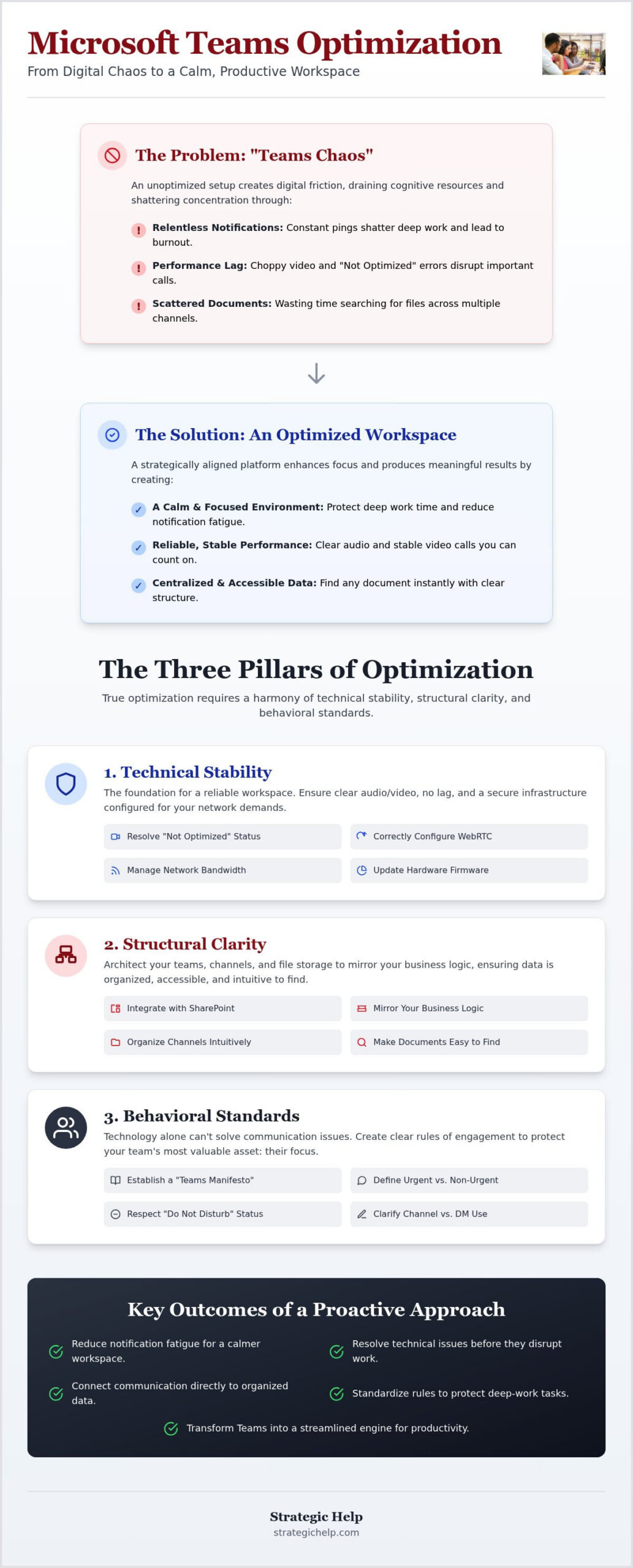
We view optimization through three distinct lenses that must work in harmony to create a productive workspace:
- Technical Stability: This is the foundation. It ensures that audio and video remain clear, the app doesn’t lag, and the underlying infrastructure is configured to handle your specific network demands.
- Structural Clarity: This involves architecting your teams and channels to mirror your business logic. When the structure is intuitive, your data stays organized and accessible.
- Behavioral Standards: Technology alone cannot solve communication issues. You need clear rules for when to use a channel, when to send a direct message, and how to respect "do not disturb" statuses.
The Cost of "Teams Chaos" in Modern Business
The hidden costs of an unoptimized setup are often found in the minutes lost every hour. Since its launch, Microsoft Teams has evolved into a comprehensive hub for collaboration, but more features often translate to more noise if they aren’t curated. Searching for a missing document or scrolling through endless message threads isn’t just a technical annoyance; it’s a drain on your company’s cognitive resources.
Unmanaged notifications are particularly damaging to high-level productivity. Constant pings shatter concentration, making it nearly impossible for staff to engage in the complex problem-solving your business requires. This is where our IT+ Managed Services approach makes a difference. Instead of simply responding when something breaks, we act as a wise guide to help you move beyond out-of-the-box settings. We focus on the "how" and the "why" of your technology, ensuring your digital environment feels calm, secure, and entirely purposeful.
Technical Foundations: Solving Performance and Connectivity Issues
A digital workspace is only as strong as its technical foundation. If your team faces constant lag or "choppy" video during high-stakes meetings, the problem often lies in unoptimized network settings or outdated client configurations. Achieving true Microsoft Teams optimization for business requires moving beyond the "it works" stage to a state where the system is tuned for peak performance. This involves addressing the "Not Optimized" banner, which often appears when the WebRTC plugins or media optimizations aren’t correctly aligned with the user’s environment. In 2026, keeping these components updated is essential for maintaining high-quality media streams across diverse hardware setups.
Reliable communication depends on more than just a fast internet connection. It requires a deep understanding of Microsoft Teams network optimization to manage bandwidth effectively across both remote and office-based staff. Beyond the connection itself, your tenant-level settings must be configured to balance performance with safety. This includes managing external collaboration and ensuring that all hardware peripherals, from headsets to room systems, are running the latest firmware to prevent unexpected disconnects. When these technical layers are aligned, the platform moves from being a source of frustration to a reliable tool for connection.
Troubleshooting Common Optimization Errors
Technical hiccups like Error Code 2000 or missing plugin notifications are frequently the result of cached data or incomplete updates. These errors don’t just interrupt a single call; they create a sense of unreliability that discourages platform adoption. We often find that adjusting media bitrates for remote teams with varying internet speeds can drastically improve the user experience. It’s about creating a consistent environment where every participant feels heard and seen, regardless of their physical location. If these technical hurdles feel overwhelming, our managed IT services can provide the steady guidance needed to resolve them permanently.
Security Standards in the Optimized Workplace
Optimization isn’t just about speed; it’s about control. A well-configured tenant uses standards-based security to manage how guests access your data and which third-party apps are allowed within your environment. Unmanaged app permissions lead to "shadow IT," where team members use unapproved tools that create security gaps and data silos. By aligning your Teams security with a broader Microsoft 365 governance strategy, you ensure that your data remains protected without hindering the collaborative spirit of the platform. This proactive approach to management prevents the chaos that often follows a default, out-of-the-box installation.
Architecting Success: Integrating Teams with SharePoint
To understand true Microsoft Teams optimization for business, you must look beneath the surface of the application. While Teams provides the interface where your people chat and meet, SharePoint acts as the robust engine that powers your data storage and document management. Many organizations struggle because they treat Teams as a standalone file cabinet rather than a window into a structured SharePoint environment. This disconnect often leads to the "General Channel" trap, where every document, from holiday schedules to sensitive financial reports, is dumped into a single location. Over time, this makes finding information nearly impossible and creates a cluttered digital workspace that hinders productivity.
A more effective approach involves designing a folder structure that mirrors your actual organizational chart. By aligning your digital architecture with your business strategy, you create an intuitive path for information to flow. This structural clarity allows you to use metadata and indexing in SharePoint to make the search function within Teams actually work. Instead of scrolling through endless threads, employees can find the exact file they need in seconds. It’s about moving from a chaotic search and find model to a deliberate store and access system that respects your team’s time.
Teams vs. SharePoint: Where Should Files Live?
Knowing exactly where a file should reside is the first step toward a calm workflow. Private chats are ideal for transient, low-stakes files that don’t require long-term storage. Channel files, however, belong to the collective knowledge of the department. For high-level document collaboration and permanent records, a dedicated SharePoint site is essential. This prevents the confusion of multiple "final" versions floating around in different chat threads. If you’re looking to refine this balance, our SharePoint document management setup guide offers a methodical way to organize your environment for long-term success.
Automating Workflows Between Platforms
Microsoft Teams optimization for business also means reducing the manual labor involved in moving data. By using Power Automate, you can trigger automatic notifications from SharePoint directly into Teams channels when a document is updated or approved. This keeps everyone informed without the need for manual status updates or follow-up emails. Additionally, configuring Shared Channels allows for seamless cross-departmental projects without the friction of switching tenants or creating duplicate files. Intelligent cloud platform management ensures that your technology does the heavy lifting, allowing your team to focus on their core mission rather than administrative overhead.
Implementing "Calm Workflows" and Governance
While a structured SharePoint engine provides the necessary skeleton for your data, the human element is what keeps that engine running smoothly. Microsoft Teams optimization for business isn’t just about technical settings; it’s about establishing a culture of "calm workflows." This starts with a Teams Manifesto, a simple, shared document that outlines exactly how your organization uses the platform. It sets clear expectations for response times and clarifies which conversations belong in a public channel versus a private chat. Without these rules, the platform quickly becomes a source of stress rather than a tool for collaboration.
True efficiency often comes from doing less. We encourage businesses to evaluate their communication methods through the lens of reduction. If a topic requires a long, nuanced back-and-forth, a brief meeting might be more efficient than fifty chat messages. If it’s a formal announcement for external records, stick to email. By reserving Teams channels for collaborative, ongoing work, you significantly reduce the noise that leads to notification fatigue. Configuring "Quiet Hours" and status alerts further protects your team’s ability to focus on deep work without the constant pressure of immediate replies.
Governance Strategy for Growing Organizations
As organizations grow, unmanaged expansion in Teams leads to digital clutter that is difficult to reverse. Implementing clear naming conventions for teams and channels ensures that everyone knows exactly where to find specific projects at a glance. Lifecycle management is equally important. You need a methodical process for archiving old teams once a project concludes to keep the active workspace lean. For a deeper look at protecting your digital environment, see our guide on Microsoft 365 governance strategy.
Staff Training: The Final Step in Optimization
The most sophisticated configuration will fail if the people using it don’t understand the "why" behind the rules. Training should move beyond basic button-clicking and focus on how to collaborate effectively within the new framework. Regular audits of platform usage help identify friction points where the process might be breaking down or where users are reverting to old habits. By empowering "Team Owners" with the authority to manage their own workspaces, you create a decentralized but orderly environment. If you’re ready to move from digital chaos to a more intentional way of working, our custom M365 management services can help you bridge the gap between complex technology and human productivity.
The Strategic Help Approach to Custom Management
Navigating the complexities of modern digital infrastructure requires more than a simple help desk. It requires a partner who acts as a wise guide, helping you translate technical capabilities into organizational success. Our approach to Microsoft Teams optimization for business is built on over 20 years of consultancy experience. We don’t believe in the high-pressure urgency of traditional IT providers. Instead, we focus on building long-term relationships based on transparency and mutual respect. This is the core of our IT+ Managed Services, where we prioritize proactive strategy over reactive troubleshooting.
We understand that a nonprofit organization has different communication needs than a professional services firm. Our team specializes in tailoring M365 configurations to fit these specific sectors, ensuring that your technology amplifies your social impact or client service rather than getting in the way. By treating your digital workspace as a puzzle to be solved with care, we help you build a future-proof foundation that remains stable as your mission evolves. It’s about moving from a state of constant technical interruptions to a place of operational fluidity.
A Thoughtful Path to Platform Efficiency
Every engagement begins with a methodical audit of your current environment. We look for the friction points identified in earlier sections, such as "General Channel" clutter or unmanaged notification settings. Our goal is to ensure your technology roadmap aligns perfectly with your 2026 growth goals. This consultative process is intentionally low-pressure, allowing for reflection and steady progress rather than impulsive changes. We believe that technology should be a tool for human connection, and our configuration process reflects that value at every step.
Ready for a Calm Workplace?
If you feel that your current digital setup is a source of frustration, it’s likely time to start a new conversation about your IT challenges. We find that the most successful transformations happen when the IT partner is deeply interested in the nuances of the client’s problem-solving process. We’re more interested in finding the right solution for your specific needs than making a quick sale. If you’re ready to see how a managed IT partner can bring clarity to your organization, you can contact Strategic Help for a custom Microsoft 365 consultation today. Let’s work together to create a workspace that feels calm, focused, and fully optimized.
Creating Your Calm Digital Workspace
The journey toward a more efficient digital environment begins with the recognition that your tools should serve your mission, not the other way around. We’ve explored how technical stability and structural clarity form the foundation of a productive platform. By integrating SharePoint effectively and establishing clear communication standards, you can finally eliminate the friction that leads to burnout. Achieving comprehensive Microsoft Teams optimization for business is a methodical process, but it’s one that pays dividends in employee focus and operational fluidity.
With over 20 years of IT consultancy experience, we specialize in guiding nonprofits and professional services through these complex M365 configurations. Our focus remains on standards-based security and the creation of calm workflows that protect your team’s time. If you’re ready to transform your workspace into a streamlined engine for productivity, we invite you to explore our custom Microsoft 365 and Teams management services. A more focused, mission-aligned future is well within reach, and we’re here to help you navigate the path forward.
Frequently Asked Questions
Why does my Microsoft Teams say "Not Optimized" in the corner?
The "Not Optimized" message typically appears when the media optimization for a virtual desktop environment or a specific WebRTC plugin isn’t correctly configured. This status indicates that audio and video processing is occurring on a remote server rather than your local device. Resolving this often requires updating your client settings or ensuring that the necessary redirection plugins are active to reduce call lag.
How can I improve the video and audio quality of my Teams calls?
Improving call quality starts with using Teams-certified hardware and ensuring all peripherals are running the latest firmware. Beyond hardware, you can adjust tenant-level settings to manage media bitrates, which helps maintain stability for remote staff on varying connection speeds. These technical foundations prevent the "choppy" video that often disrupts high-stakes meetings and collaborative sessions.
What is the best way to organize Channels for a medium-sized business?
Channels should be architected around specific departments or long-term projects rather than individual tasks to prevent digital clutter. Implementing strict naming conventions and moving beyond the "General" channel trap ensures that information remains searchable and logically structured. This clarity allows your team to find documents quickly without scrolling through irrelevant message threads.
Does Microsoft Teams optimization require a high-speed internet connection?
Optimization doesn’t require high-speed internet, but it significantly improves how the platform performs on lower-bandwidth connections. By configuring the system to prioritize voice and video traffic, Teams can maintain a stable call experience even when bandwidth is limited. This proactive management ensures that remote team members remain connected without facing constant technical interruptions.
How do I stop getting too many notifications in Teams?
You can reduce notification fatigue by adjusting your "Activity" settings and establishing clear organizational rules for when to use @mentions. Creating a "Teams Manifesto" helps standardize communication expectations, ensuring that alerts are reserved for truly urgent matters. This behavioral shift protects your team’s deep work and helps maintain a calmer, more focused digital environment.
What is the difference between Teams optimization and basic installation?
Basic installation simply places the software on your device, while Microsoft Teams optimization for business aligns the platform’s settings with your specific organizational goals. Optimization involves tuning technical performance, architecting a logical SharePoint integration, and establishing governance rules. It’s the difference between a tool that merely functions and one that actively enhances your team’s productivity.
Can Strategic Help help us migrate from Google Workspace to an optimized Teams setup?
Yes, we specialize in helping organizations transition from Google Workspace to a fully configured and managed Microsoft 365 environment. Our methodical process ensures that your data is migrated securely while your new Teams architecture is built for long-term clarity. We act as a wise guide to ensure your new platform is optimized for your mission from the very first day.
How does SharePoint integration help with Teams optimization?
SharePoint provides the robust engine for document management, allowing Teams to serve as a streamlined interface for your data. When these platforms are correctly integrated, your files are organized with metadata and indexing that makes search functions reliable. This Microsoft Teams optimization for business strategy ensures that your documents are always easy to find and securely managed within your broader governance framework.