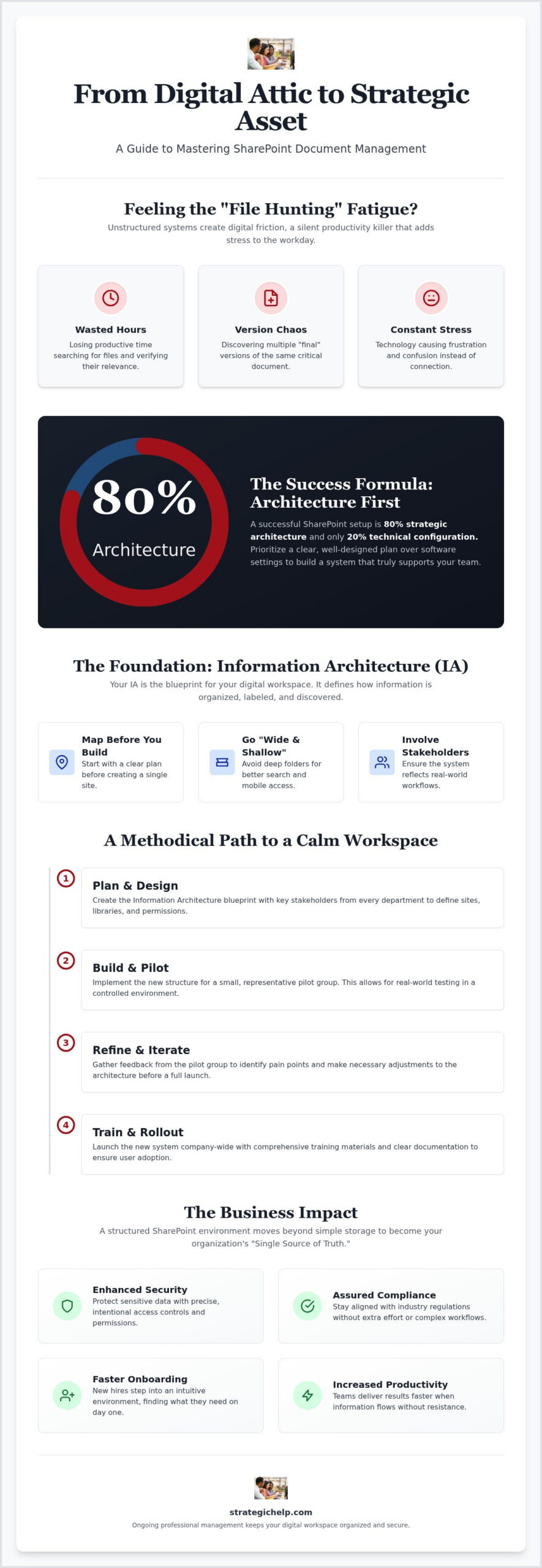
The point of moving to Teams or SharePoint may vary, but we think the primary reason is to have a central repository of all digital assets. One central "file cabinet." No need to look through staff computers, file servers, online "silos" or squirrelled away in some othr weird location. Successful SharePoint document management setup is 80% information architecture and only 20% technical configuration. When you prioritize your company or organization’s structure over software, the platform starts to work for you rather than against you.
Have you ever felt "file hunting" fatigue or the quiet panic of discovering three different versions of the same "final" contract. It’s frustrating to lose productive hours to digital friction, especially when you’re trying to focus on high-impact work. Technology should be a tool for connection, not a constant source of stress.
In this guide, you’ll discover how to transform a chaotic file dump into a strategic asset that powers calm, efficient workflows. We’ll walk through the essentials of building a standardized filing system and implementing secure, compliant document handling. By the end, you’ll have a clear path toward a digital workspace that feels organized, reliable, and secure.
Key Takeaways
- Shift your perspective from viewing SharePoint as a simple storage bin to seeing it as a strategic framework for your organization’s document lifecycle.
- Learn why a successful architecture starts with a map, ensuring you have a clear plan before you ever open the Admin Center.
- Master the balance between traditional folders and modern metadata to build a SharePoint document management setup that offers multiple ways to find critical files.
- Discover a methodical, step-by-step path to deployment that uses pilot groups to refine your system before a full company rollout.
- Understand the importance of ongoing professional management to keep your digital workspace organized and secure long after the initial configuration.
What is SharePoint Document Management and Why Does It Matter?
Many teams view SharePoint as just another place to dump files. They treat it like a digital basement, tossing documents into a dark corner and hoping they can find them later. A true SharePoint document management setup is actually a strategic framework. It’s the difference between a messy pile of papers and a well-indexed library. When you move from "organic" file growth, where folders appear at random, to a "managed" lifecycle, you create a foundation for long-term stability.
This transition matters because digital friction is a silent productivity killer. Every minute spent hunting for a missing PDF or checking if a file is actually the latest version adds a layer of stress to the workday. A clean system powers what we call "calm workflows." It allows your staff to focus on their actual expertise instead of acting as digital detectives. It’s about creating an environment where information flows without resistance.
Beyond Simple File Storage
It’s easy to confuse SharePoint with basic cloud drives like Dropbox or a personal OneDrive account. While those tools are excellent for simple storage, they often lack the governance required for business-critical operations. SharePoint is designed to be your organization’s "Single Source of Truth." A Document Management System serves as a tool for human connectivity by ensuring shared knowledge is accessible and reliable for every team member. It isn’t just about where a file lives; it’s about how that knowledge moves through your organization.
The Business Impact of a Proper Setup
A structured approach isn’t just about aesthetics. It’s a standard business requirement for security and compliance. When your SharePoint document management setup is intentional, you can control who sees what with surgical precision. This protects sensitive data and keeps you aligned with industry regulations without extra effort. You aren’t just storing data; you’re protecting your organization’s reputation.
Beyond security, a clear structure simplifies the human side of business. New hires don’t have to spend weeks learning a secret code to find their training manuals. Instead, they step into an environment that makes sense immediately. This clarity translates directly to better client service. When your team can find information in seconds, they deliver results faster and with more confidence. Efficiency isn’t about rushing. It’s about removing the obstacles that slow you down.
The Foundation: Designing Your SharePoint Information Architecture
It’s tempting to jump straight into the Microsoft 365 Admin Center and start creating sites. However, clicking buttons without a map is how digital chaos begins. A successful SharePoint document management setup begins with a well-defined Information Architecture (IA). Think of IA as the blueprint for your digital house. It defines how information is organized, labeled, and discovered by your team. Without this blueprint, even the most expensive tools will feel like a burden rather than an asset.
In a modern business context, Information Architecture moves away from the rigid, nested folder structures of the past. We generally recommend a "wide and shallow" approach. Instead of burying a file five folders deep, you create a flatter structure that relies on distinct sites and libraries. This makes search more effective and ensures that your mobile users don’t have to tap through endless layers to find a single document. It’s a more fluid way to manage your documents using SharePoint while maintaining high visibility across the organization.
Designing this structure isn’t a task for the IT department alone. It requires active participation from stakeholders across every department. You need to understand how your marketing team actually uses their creative briefs versus how the finance team handles sensitive audits. By involving these voices early, you ensure the system reflects real world workflows. If you find the design phase overwhelming, Strategic Help can act as your wise guide to ensure your architecture is built for long term success.
Mapping Your Sites and Libraries
Grouping documents correctly is a balancing act. You might organize by department, such as "Human Resources," or by functional project, such as "2024 Rebrand." It’s helpful to distinguish between Communication Sites and Team Sites. Communication Sites are for broad "one-to-many" information sharing, like a company handbook. Team Sites are for active collaboration where everyone contributes. Usually, you should create a new Site when you need a distinct security boundary or a unique set of apps. If you just need to group related files within an existing project, a new Document Library is often sufficient.
Defining Permissions and Governance
Security should be a quiet, background strength of your setup. We follow the "Least Privilege" principle, which means staff only have access to the specific resources they need for their roles. This reduces the risk of accidental data exposure. You also need clear rules for external sharing to protect company assets when collaborating with vendors. Finally, establish a governance policy. This is a simple set of rules that dictates who can create new sites and how they should be named. Good governance prevents "SharePoint sprawl," ensuring your environment stays as organized in three years as it is on day one.
Folders vs. Metadata: Choosing the Right Organization Method
One of the most common requests we hear during a SharePoint document management setup is: "Can we just have our folders back?" It’s a natural reaction. For decades, we’ve been trained to think of digital files like physical papers in a cabinet. However, relying solely on folders in a cloud environment often creates more problems than it solves. It forces a document to live in only one "place," which leads to duplication and version control nightmares.
Metadata offers a more fluid alternative. Think of metadata as digital tags that describe what a file is, rather than just where it’s located. By using tags, you can view the same set of files by "Project Manager," "Due Date," or "Client Name" without ever moving the document. It’s a fundamental shift that moves your organization from a rigid hierarchy to a dynamic library. Even major institutions recognize the need for this level of structure, as seen in the IRS SharePoint Governance Manual, which outlines how large-scale entities maintain order through rigorous tagging and classification.
The Power of Columns and Content Types
In SharePoint, you create these tags using columns. You might add a "Choice" column to label a document’s status, a "Date" column to track expiration, or a "Person" column to assign ownership. For even greater consistency, you can use Content Types. These are essentially templates for specific kinds of documents, like "Contracts" or "Invoices," which automatically include the correct tags every time a new file is created. Implementing these metadata fields eliminates the "where did I save that?" anxiety because you can always find a file based on its characteristics rather than its path.
When Folders Still Make Sense
We don’t believe in a "metadata only" dogma. There are specific scenarios where folders are actually helpful, particularly when you need to apply unique security permissions to a specific group of files within a library. Folders are also useful for managing large volumes of data that need to be synced for offline use. However, you must be mindful of the limitations. Deeply nested folders can lead to excessively long URLs that break certain applications, and they often cause sync issues with OneDrive. They also hide information, making it harder for others to discover relevant work.
A healthy SharePoint document management setup often uses a hybrid approach. You can use a limited folder structure for high-level categories while relying on metadata for the details. You can even use "Folder-based Metadata," where SharePoint automatically applies tags to any file dropped into a specific folder. This allows your team to keep their familiar workflows while the organization gains the benefits of a modern, searchable system. It’s about finding the balance that feels natural for your staff while maintaining the integrity of your data. For a practical walkthrough of how to apply these principles without creating new confusion, see our guide on how to organize company files in SharePoint without the chaos.
Step-by-Step: SharePoint Document Management Setup Guide
Building a digital workspace shouldn’t feel like a forced march. A methodical approach ensures your SharePoint document management setup remains stable as your organization grows. Instead of a "big bang" release, we recommend a phased deployment. This allows you to test assumptions with a small pilot group before the full company rollout. By gathering feedback from a few trusted users, you can refine your metadata columns and site structure in a low-stakes environment. It’s much easier to adjust a label now than to rename thousands of files later.
This process also provides a natural opportunity to address legacy data. Whether you’re moving from local file servers or transitioning from Google Workspace, you don’t have to bring everything at once. Use this setup phase to audit your current files. Decide what’s truly business-critical and what can be safely archived. This keeps your new environment lean, fast, and easy to navigate from the very first day.
Phase 1: Technical Configuration
Configuration starts with creating your Site collection and Document Libraries based on the architecture designed in previous steps. This is the stage where you establish your Global Term Store. This centralized directory ensures that metadata tags, like department names or project codes, remain consistent across every site in your tenant. You should also configure versioning settings immediately. Setting a limit of 500 major versions is a standard practice that protects you from accidental data loss while keeping your storage footprint manageable. It’s a simple toggle that provides immense peace of mind. For a deeper look at how to apply these principles effectively, our Microsoft 365 SharePoint configuration best practice guide covers the latest standards for building a high-efficiency environment.
Phase 2: Migration and Validation
Once the structure is ready, it’s time to move your data. If you’re moving from on-premises servers, the SharePoint Migration Tool (SPMT) is a reliable, free choice from Microsoft. For those transitioning from Google Workspace, Mover.io provides a smooth path for your files and permissions. After the data lands, perform a rigorous security audit. You need to ensure that permissions inherited correctly and that private folders haven’t accidentally become public during the move. Finally, validate your search functionality. Upload a test document with specific tags and verify that it appears in search results within a few minutes. If search works, your metadata is properly indexed.
The technical setup is only half the battle. The final, and perhaps most important, step is user training. Your team needs to understand the "why" behind the new structure to avoid falling back into old habits. We believe technology should empower people, not confuse them. If you want to ensure your transition is handled with methodical care, we offer Microsoft 365 Custom Management to guide you through every phase of your SharePoint document management setup.
Optimizing for the Future: Professional SharePoint Management
Completing your initial SharePoint document management setup is a significant milestone, but it isn’t the finish line. Think of your digital workspace like a garden. Even the most perfectly designed landscape requires consistent care to prevent weeds from taking over. In the digital world, those weeds are redundant files, broken permissions, and "site sprawl" that can slowly degrade the efficiency you worked so hard to build. A professional setup is a living ecosystem that needs to evolve alongside your organization’s goals.
Ongoing management ensures that the logic you established on day one remains intact on day one thousand. It involves regular reviews of your information architecture and adjusting metadata tags as your projects change. Without this attention, teams often revert to old habits, creating "shadow IT" solutions or saving files in unmanaged locations. Managed IT services play a vital role here by providing the technical oversight needed to maintain platform health and security standards. This proactive care prevents the return of digital chaos and keeps your workflows calm and predictable.
The "IT+" Approach to Microsoft 365
At Strategic Help, we view technology through the lens of human connection. Our "IT+" approach goes beyond basic troubleshooting to focus on how tools like SharePoint integrate with the rest of your suite. For instance, we ensure your SharePoint document management setup works in perfect harmony with Microsoft Teams. This creates a cohesive experience where your staff can collaborate on a document in a chat while the file itself remains securely stored and tagged in the correct library. It’s about removing the boundaries between different apps to create a single, fluid environment.
Security is another pillar of this long term strategy. We implement standards-based security that protects your assets without creating unnecessary hurdles for your team. By moving from a traditional vendor-client relationship to a "wise guide" partnership, we help you navigate the complexities of cloud governance. We aren’t just here to configure software; we’re here to amplify your mission by ensuring your digital infrastructure is a strategic asset rather than a technical burden.
Next Steps for Your Organization
If you’re unsure whether your current system is helping or hurting, it’s helpful to observe how your team interacts with their files. Do they spend more than a few minutes searching for a specific contract? Are there frequent questions about which version of a document is the latest? These are clear signs that your architecture may need a professional audit. A thorough evaluation can identify where the friction is occurring and provide a roadmap for a more effective reconfiguration. Taking the time to assess your environment now can save hundreds of hours of lost productivity in the future.
Ready to transform your digital workspace? Schedule a consultation with Strategic Help to organize your SharePoint for success.
Building Your Path to Operational Fluidity
Transitioning from a digital file dump to a structured asset requires a fundamental shift in perspective. As we’ve explored, a strong information architecture and the thoughtful use of metadata are the keys to eliminating "file hunting" fatigue for good. A methodical SharePoint document management setup isn’t just a one-time technical task; it’s an investment in a sustainable environment where your team can thrive without constant digital friction.
Strategic Help brings over 20 years of information technology expertise to every consultation. We specialize in custom Microsoft 365 and Teams configuration, offering a national reach with a boutique feel that prioritizes your unique organizational needs. We’re ready to act as your wise guide, ensuring your technology supports your broader mission rather than adding to your daily stress. Our goal is to help you move from technical complexity to operational clarity.
Let Strategic Help design your calm, efficient SharePoint workspace.
You don’t have to navigate these structural puzzles alone. A more organized, peaceful, and productive workday is well within your reach.
Frequently Asked Questions
How is SharePoint document management different from OneDrive?
OneDrive is designed for personal file storage and individual drafts before they’re ready for the wider team. In contrast, a SharePoint document management setup is built for shared ownership and organizational collaboration. It allows for advanced permissions and metadata that a personal drive simply doesn’t support. Think of OneDrive as your private desk and SharePoint as the company’s central library.
Can I use SharePoint to collaborate with people outside my company?
You can absolutely collaborate with external partners, vendors, or clients using SharePoint’s secure sharing features. Administrators can enable guest access at the tenant level or for specific site collections to maintain tight control. This allows you to share individual files or entire folders without giving outsiders access to your internal environment. It’s a secure way to manage projects with people who don’t have a company email address.
What is the best way to move files from a local server to SharePoint?
The most reliable method for moving data from an on-premises server is the SharePoint Migration Tool (SPMT). This free utility from Microsoft preserves your file metadata and permissions during the transition. For more complex migrations or moves from other cloud providers, tools like Mover.io offer a streamlined path. We recommend running a pilot migration first to ensure your new structure handles the data as expected.
Does SharePoint support automated document workflows?
SharePoint integrates seamlessly with Power Automate to handle repetitive tasks like document approvals or notifications. You can set up "flows" that trigger whenever a new file is uploaded or when a specific metadata field is updated. For example, a contract could be automatically routed to your legal team once its status changes to "Pending Review." This automation removes manual friction and ensures your processes remain consistent.
How do I prevent users from accidentally deleting files in SharePoint?
You can prevent accidental data loss by applying "Contribute" permissions instead of "Edit" or "Full Control" for most users. This allows them to add and edit files without having the authority to delete them or change site settings. Additionally, SharePoint’s two-stage Recycle Bin keeps deleted items for 93 days, providing a safety net. For critical business documents, you can also implement retention policies that prevent deletion entirely for a set period.
Is metadata really better than folders for a small team?
Metadata is often superior even for small teams because it eliminates the need to remember exactly which folder a file lives in. Tags allow you to filter and sort documents based on their properties, such as client name or project status. While folders are familiar, they often lead to duplicate files when a document fits into multiple categories. Metadata keeps your SharePoint document management setup flexible and ensures that searching for files remains effortless as your business grows.
What are the storage limits for SharePoint Online in 2026?
As of current Microsoft standards, the base storage for SharePoint Online is 1TB plus 10GB for every licensed user in your tenant. While these limits are generous for most organizations, you can purchase additional storage if your document volume exceeds these levels. It’s helpful to monitor your storage usage through the SharePoint Admin Center to ensure you don’t hit unexpected caps. Regular archiving of legacy data is a great way to keep your primary environment lean.
How does SharePoint integrate with Microsoft Teams for document management?
Every team you create in Microsoft Teams actually uses a SharePoint site as its backend for file storage. When you upload a document to a channel, it’s stored in a library on that team’s corresponding SharePoint site. This integration means you get all the benefits of SharePoint, like versioning and metadata, directly within the Teams interface. It allows your staff to collaborate in real time while maintaining a structured, secure document repository.